![ShippyPro Logo-1.svg]](https://help.shippypro.com/hubfs/Imported%20sitepage%20images/ShippyPro%20Logo-1.svg)
Poste Delivery Business is a service by Poste Italiane, but it stands out as a carrier in its own right due to its specific features, designed specifically for business activities.
Although it is part of the same company, Poste Delivery Business has different functionalities compared to Poste Italiane, such as the ability to create a return label (return label in the box), the use of labelless return services via QR Code, and access to drop-off points (Drop off Points).
For these reasons, if you want to use Poste Delivery Business on ShippyPro, you need to create a dedicated connection, even if you are already connected to Poste Italiane and have a single contract that includes both services.
In addition, ShippyPro provides you with additional features to improve your shipping experience, making the most of the capabilities offered by Poste Delivery Business.
In this article you will learn how to connect Poste Delivery Business to ShippyPro.
Overview:
First of all, ask your Poste Italiane sales representative to include the use of Poste Delivery Business in your contract. Once the request has been verified by Poste, they will proceed to activate your API package and provide you with your ClientID and SecretID.
You can find your cost center codes (to be used for the print API) in your Reserved Area of My Poste Delivery Business.
The correct format for the Cost Center is CDC-000NNNNN
If your shipments return an error with the message “Dati non conformi: orgunits assenti" check that the Cost Center entered in the carrier connection modal follows this format.
Now that you have all the necessary information, you can proceed with the connection in the Carriers section of ShippyPro (type the name in the search bar to find it more quickly):
-
Cost Center Enter your Cost Center in the respective field.
-
Client ID Enter your ClientID in the respective field.
-
Secret ID Enter your SecretID in the respective field.
-
Product Select the product included in your contract (you can choose from Standard, Express, International Standard, International Express, and International Plus).
-
Label Type Choose the label type from:
-
PDF A6
-
PDF A4 / 10x11
-
ZPL
-
-
International shipping type (if you select an International service) Select the international delivery type:
-
Retail
-
Business
-
-
International Packaging Type Choose the packaging type for international shipments (optional):
-
parcel
- pallet
- parcel or pallet
- envelope
- tube
- pak
- box
- other
-
-
Return Services Choose the type of Return Service (optional).
-
Enable prepaid return label Check this box if you have this configuration active.
-
Enable automatic pickup on the day after shipment Check this box if you have this configuration active.
-
Use Full Coverage up to €50,000 for international shipment insurance With this option enabled, when an insurance value is entered during the creation of an international shipment, ShippyPro requests the carrier to use Full Coverage insurance up to €50,000. If the option is disabled, ShippyPro requests the carrier to use:
- Full Coverage insurance up to €1,500, if the insured value is less than or equal to €1,500
- Full Coverage insurance up to €50,000, if the insured value is greater than €1,500
Enable this option if your contract includes insurance for international shipments with Full Coverage up to €50,000.
-
Test Mode You can choose to make test shipments by enabling Test Mode. Shipments made in test mode are not guaranteed to be valid and may differ from production labels.
-
Enable labelless return with QR code You can choose to also print the return label or generate a labelless return with QR Code directly from this connection procedure. We will see later how to make the most of this service.
📌The Cost Center is a static value that must be entered in the Poste Delivery Business connection window. If you have multiple cost centers, you will need to add a connection for each one.
It is important to remember that if the option Enable automatic pickup on the day after shipment is selected, the pickup address will be the sender address of the individual shipment.
Options
-
Track & Trace: Available
-
Paperless: Not Available
-
PickUp/DropOff (PUDO): Available
-
COD: Available
-
Live rates: Not Available
-
Return labels: Available
-
Return labels in the box: available with the carrier option delivery_andata_ritorno or by enabling "Enable prepaid return label" and setting a carrier option between delivery_reverse_domicilio and delivery_reverse_ufficio_postale
-
Pickup booking: available, if configured in modal
-
Address check: Not Available
-
Carrier options: Available
-
Proof Of Delivery (POD): Not Available
-
Insurance: for domestic shipments (Aptus code APT000919); for international shipments (codes APT000955 and APT000956)
-
Multiparcel: Not Available
-
Delete Shipment (Void): Not Available
-
CloseOut: Available
-
CN22: Not Available
-
CN23: Not Available
-
Validazione credenziali: Not Available
Service types:
-
APT000902 Standard
-
APT000901 Express
-
APT000904 Internazionale Standard
-
APT000903 Internazionale Express
-
APT001013 Internazionale Plus
If you use more than one product on Poste Delivery Business, you can freely add a new connection for each product.
For the International Plus service, selecting Retail will generate a DHL Parcel Connect type label, while selecting Business will generate a Eurodis type label.
Carrier Options
|
Name
|
Slug
|
Type
|
Description
|
|
A partire dalle ore
|
delivery_range_from
|
text
|
Requested delivery time (from)
|
|
Consegna Programmata - Fascia Oraria
|
|
dropdown
|
Scheduled Delivery - Time Slot
|
|
Consegna Programmata - Giorno
|
|
dropdown
|
Scheduled Delivery - Day
|
|
Fino alle ore
|
delivery_range_to
|
text
|
Requested delivery time (to)
|
|
Data di consegna
|
|
text
|
Delivery date
|
|
Domicilio
|
|
flag
|
Home delivery
|
|
Drop off PuntoPoste (APT000947)
|
postedeliverybusinesspuntoposte
|
point
|
|
|
Drop off FermoPosta
(APT000949)
|
postedeliverybusinessfermoposta
|
point
|
|
|
Floor Delivery
(APT000913)
|
floor_delivery
|
flag
|
Floor delivery
|
|
Reverse domicilio
|
|
flag
|
|
|
Reverse internazionale
|
|
flag
|
|
|
Reverse Ufficio Postale
|
|
flag
|
|
|
Servizio Andata Ritorno
|
|
flag
|
|
Label Design
- PDF A4: not available
- PDF A6: not available
- PDF 10x10: not available
- ZPL: available with barcode, second barcode and text
Drop-off Points
For services APT000947, APT000949, APT000948 choose the following Carrier Options:
- Drop Off Punto Poste for APT000947
- Drop Off Fermo Posta for APT000949
- Drop Off Locker for APT000948
If you ship via API you can use the GetDropOffPoint call to retrieve drop-off points, without Aptus codes.
If during the shipping procedure you do not see the drop-off points (PUDO) among the Carrier Options, verify that they have been correctly selected in the Checkout section.
Finally, for Round Trip services you will need to check the Round Trip Service option among the carrier options at checkout.
If by choosing the Round Trip option you encounter a system error, try changing the label format from ZPL to PDF or vice versa.
Return Shipments
You have two options for using return services with Poste Delivery Business:
Option 1: Configuration in the Carrier connection
- Go to Carriers > Poste Delivery Business > Edit
- Select the desired return service (e.g. Reverse Post Office) in the "Return Services" menu
- When creating the shipment, there is no need to add the Carrier Option
Option 2: Carrier Option during Shipment
- You do not select anything in the carrier connection
- During the creation of the shipment, add the specific carrier option (e.g. postedeliverybusinessdelivery_reverse_ufficio_postale)
Enable prepaid return label (label in the box)
This service allows you to automatically create a return label together with the outbound one. Go to Carriers > Poste Delivery Business > Edit, select one of the Return Services and check the "Enable prepaid return label" option:
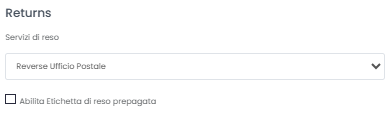
By doing so, two labels will be generated:
- An outbound label
- A pre-filled return label with reversed addresses
International Returns
You can use the International Reverse service in two ways:
- By selecting International Reverse among the return services in the carrier connection
- By choosing the International Reverse Carrier Option during shipment (Aptus code APT000971)
This is a new accessory service different from the one provided for domestic shipments. To make an international return shipment, you must enter the data of the foreign Sender and the Italian recipient. Also fill in the packaging code field with "rev".
The International Reverse option is currently not supported by the Carrier for the International Plus service. It is therefore not possible to create concurrent returns (return label in the box) with International Plus.
Please note that Easy Return cannot be used with the Label in the box option selected; it is therefore necessary to deselect the Label in the Box flag in the modal (Print Return Label) in order to use Easy Return.
It is not possible to automatically print return labels for all shipments.
QR Code Labelless Return
This service allows you to create a return shipment with a QR code and without a label. Visit the dedicated article How to configure QR Code Labelless Return for more information
The QR Code Labelless Return service is only compatible with the following return services:
- Reverse Post Office
- Reverse Punto Poste
Select one of these return services and check the "Enable labelless return with QR code" box.
Would you like to automatically send the QR Code to your customer by email? Visit the dedicated article How to configure QR Code Labelless Return and get in touch with our sales department or send us an email at sales@shippypro.com.
International shipments
With Poste Delivery Business you can create international shipments. Here is how to do it:
- Select an international product from International Standard, International Express, and International Plus in the "Product" dropdown menu.
- Select an option between Retail and Business in the "International delivery type" dropdown menu.
- Select a packaging option from the "International packaging type" dropdown menu. Alternatively, you can leave the dropdown without a selection and choose the package type during the shipment creation phase.
📌For single-parcel shipments with the International Plus service, multiple identical labels may be generated. This behavior is expected by Poste and does not constitute an anomaly.
📌For multi-parcel shipments with International Plus, not all destinations support this mode. It is recommended to verify the availability of the multi-parcel service with your sales representative.
You may encounter some errors when connecting Poste Delivery Business or creating shipments. To find out how to resolve them, please refer to the following article:
How to fix errors for Poste Italiane, Poste Delivery Business, SDA
With Poste Delivery Business it is not possible to release held shipments from ShippyPro.