![ShippyPro Logo-1.svg]](https://help.shippypro.com/hubfs/Imported%20sitepage%20images/ShippyPro%20Logo-1.svg)
How to use Atlas Pickup Points with ShippyPro
Summary:
- Prerequisites
- Atlas configuration in Shopify
- How it works: Platform and API users
- Setting up automatic carrier assignment
- FAQ
Overview
Atlas Pickup Points is a third-party Shopify app that lets your customers select a pickup point (PUDO) directly during checkout. When integrated with ShippyPro, the selected pickup point is automatically linked to the imported order, allowing your team to generate shipping labels with the correct delivery location without any manual input.
Prerequisites
Before using this integration, make sure the following are in place:
- Atlas Pickup Points installed and configured on your Shopify store
- ShippyPro Checkout section is configured
- Atlas configured with ShippyPro integration: enter your ShippyPro API key in the Atlas back office to enable automatic carrier matching. You can find your API key in ShippyPro under Checkout > Integrations
Note: For additional information on pickup point display options at checkout, please refer to the Atlas Pickup Points Guide.
Atlas configuration in Shopify
Below are some key points about the Atlas configuration in Shopify (you can refer to the Atlas Pickup Points Guide for more details):
- After installing the Atlas app in Shopify, the Atlas Setup Checklist will guide you through the key configuration steps (Apps > Atlas Pickup Points > Add Configuration):
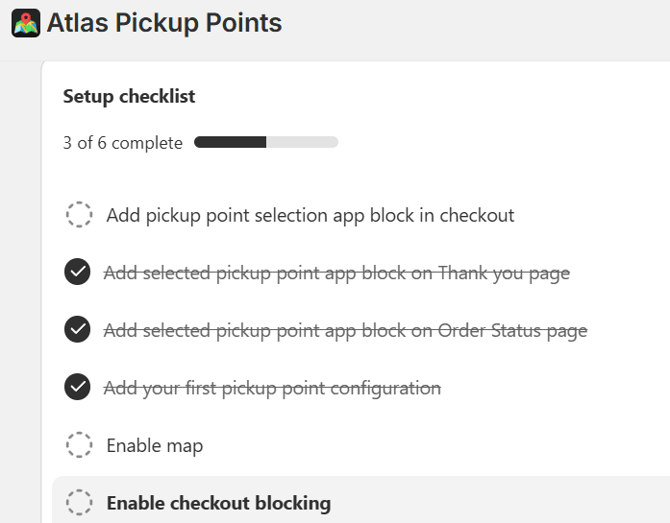
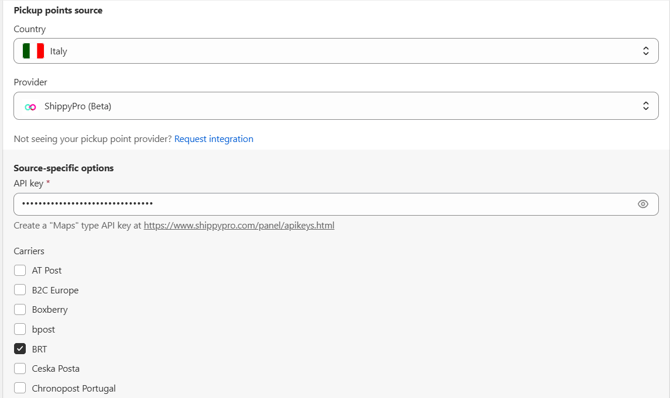
- From the “Pickup Point Configurations” section, you can configure your shipping Zones and Rates. Make sure to select ShippyPro as Provider and enter your ShippyPro API Key in the dedicated field. In the same section, select your carriers from the Carriers list (NB: these must match the carriers enabled in the ShippyPro list under Checkout > Maps Setup).

- If you plan to import orders into ShippyPro and ship them manually via the platform, navigate to the Atlas Integrations > Shipping Address section and enable "Update order shipping address with pickup point address" > "Customize how shipping address is updated". This ensures that the recipient's address is automatically updated with the pickup point location for every imported order.
Follow the setup below to display the pickup point Code and Name in the Company field and the pickup point address in the Address field:
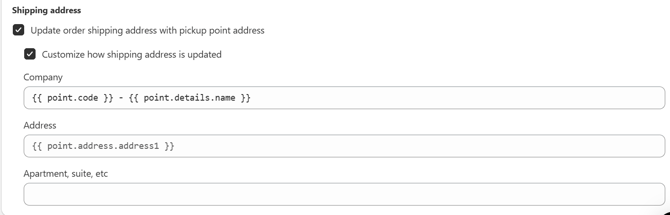
NB: it is possible to manually select the PUDO option directly from the Carrier Options during the shipping creation, for a complete transmission of all required data, where the carrier requires it.
How it works: Platform and API users
If you import orders and ship manually through the ShippyPro platform:
- Order and pickup point selection: the customer completes the order and selects a pickup point via the Atlas widget (e.g. “IT123 BRT Pickup Point - Via Roma 15, Milano”).
- Import into ShippyPro: the order is imported and appears in the To Ship view, with the selected PUDO already shown in the order’s Carrier Options.
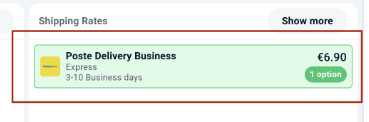
- Rate selection: choose the rate associated with the PUDO selected by the customer.
Important: we strongly recommend setting up an Automation Rule to automatically assign the correct carrier based on the delivery option (see Setting up automatic carrier assignment). - Label generation: all pickup point information is already pre-filled. Review the details and confirm to generate the label.
If you ship via API:
The GetDropOffPoints call is automatically triggered when a customer selects a PUDO through the Atlas widget (the related logs will also be available in your ShippyPro API section). When placing the Ship API call, make sure to pass the selected point ID in the CarrierOptions field (refer to API section > Carrier List > “View Carrier Options” for carrier-specific configuration details)Setting up automatic carrier assignment (recommended)
To avoid manual carrier selection for every PUDO order:
- Go to Automation Rules in your ShippyPro panel
- Create a new rule with the Condition "Delivery option contains" and enter the carrier/pickup point keyword (e.g., "BRT pickup point")
- Set the Action to automatically assign the corresponding carrier
- Repeat for each carrier you use with Atlas
This ensures that when an order with a pickup point is imported, the correct carrier is pre-selected automatically.
Frequently Asked Questions
-
Do I need to configure anything in the ShippyPro UI?
No. Once the Checkout section is enabled and your Atlas integration is active, the pickup point data flows automatically. No UI changes are required on the ShippyPro side.
- What happens if a customer selects a pickup point for a carrier I haven't configured in ShippyPro?
The order will still be imported with the pickup point information visible in the delivery options. However, you will need to have the matching carrier connected in ShippyPro to generate a label with that pickup point.
- Can I use Atlas without the ShippyPro API key integration?
Yes. Atlas also works with its own built-in carrier integrations. However, for the best experience and automatic carrier matching, we recommend configuring the ShippyPro integration in the Atlas back office. - Which are the supported carriers?
You can find the whole list of Carriers here by clicking on 'Drop Off Points' feature.