![ShippyPro Logo-1.svg]](https://help.shippypro.com/hubfs/Imported%20sitepage%20images/ShippyPro%20Logo-1.svg)
The new SMS and WhatsApp Notifications are released! We’d love to hear your feedback — share your thoughts here!
With ShippyPro, you can automatically send SMS and WhatsApp notifications to update your customers at every step of the delivery journey, directly on their mobile phones. Boost your open rates, increase customer retention, and collect valuable feedback on their shopping experience.
Start now at: https://app.shippypro.com/notifications
Summary:
- What Are SMS Notifications
- What Are WhatsApp Notifications
- How to Activate the Notifications
- Activate a notification with Presets (the fastest way)
- Create a custom workflow
- Customizing templates and languages
- Which notifications to activate (and in what order)
- Payments and Costs
- FAQ & Errors
1. What Are SMS Notifications
SMS notifications allow you to keep your customers informed in the most immediate way, notifying them of changes in their order status. Messages can be sent in 5 different languages, automatically adapting to the customer’s country.
2. What Are WhatsApp Notifications
Similar to SMS, WhatsApp notifications instantly update your customers about changes in their order status — but via a WhatsApp message delivered straight to their phone.
📌 Note: SMS and WhatsApp Notifications always go to the shipment recipient on the order. If you want your own team alerted instead — for example when a shipment is on hold or flagged by Tracking Solver — see How to set up Internal Alerts.
3. How to Activate the Notifications
-
Prepare your templates and set up your workflows to send the notification, either with a ready-made Preset for the fastest path (see [section 4]) or a custom workflow built from scratch (see [section 5])
-
Start a subscription for SMS or WhatsApp
SMS and WhatsApp notifications require two separate subscriptions, giving you the flexibility to pay only for the channel you really want to use.
⚠️ Important: Some carriers provide SMS options directly. To avoid sending duplicate notifications, make sure to untick the SMS notification option under Carrier > Edit before enabling ShippyPro SMS Notifications.
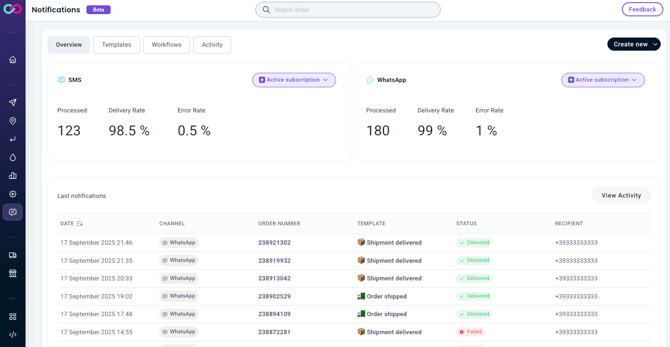
Dashboard Overview
-
Subscription cards
Show the status of your subscriptions and provide metrics to monitor usage.⚠️ Metrics refer to the last 30 days only and are not linked to the billing period. For accurate billing, click on Active subscription > Monitor usage and subscription.
-
Last notifications table
Displays the most recent notifications, their status, and details. This gives you full visibility on the last notifications sent.
4. Activate a notification with Presets (the fastest way)
Presets are ready-made rules for the most common moments you'd want to alert a customer: you don't need to know what a trigger or a condition is, ShippyPro sets them up for you. Presets aren't tied to one channel, so you can use the same catalog to activate SMS, WhatsApp, or Email notifications, simply by choosing the channel that fits each moment.
- Go to Notifications > Presets.
- Browse the catalog of ready-to-use rules, for example:
Label Generated,In Transit,Out for Delivery,Failed Attempt,Delivered,Available at PUDO. - Find the preset that matches the moment you want to notify your customer about, for example
Delivered, and click Use preset. - The workflow editor opens, already pre-filled with the correct Trigger and Condition for that rule. You don't need to touch these fields: go straight to the next step.
- Choose the Channel:
SMSorWhatsApp. - Select the Template to send from those available for that channel.
- The workflow name is pre-filled based on the preset you picked; you can edit it if you want.
- Click Save & enable to make it live.
💡 Tip: If you're a new user, the Presets tab is the recommended starting point: it covers most needs without building anything from scratch. See Which notifications to activate below to decide which ones to start with.
📌 Note: A workflow created from a preset is a regular workflow in every respect: you can edit its trigger, condition, or action at any time, exactly like one built from scratch (see section 5).
5. Create a custom workflow
Presets cover the most common rules, but if you need a specific combination that isn't in the catalog, for example a notification that only applies to one carrier or one store, you can still build a workflow from scratch. The Workflows section gives you the power to fully customize when and how notifications are sent.
- Go to Notifications > Create new > Workflow.
- Choose a trigger (e.g.
New tracking status). - Add a condition (e.g. a specific tracking status, store, or carrier).
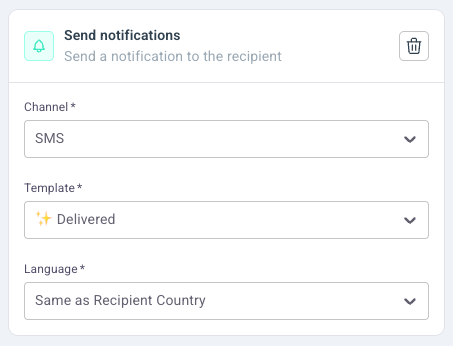
- Select the Send notification action. Here you choose the template to send and the language:
- Same as Recipient country (if the shipment goes to Italy, the notification will be in Italian)
- Forced language between English, French, German, Spanish, and Italian
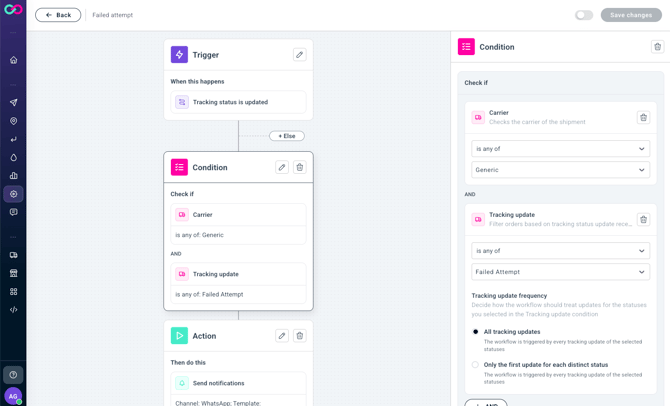
💡 Tip: You can configure a workflow to send a WhatsApp notification only when the carrier attempts a delivery without success, a great way to alert your customer!
📌 Note: A workflow created from a preset is identical to one built from scratch: you can edit its trigger, condition, or action at any time.
6. Customizing templates and languages
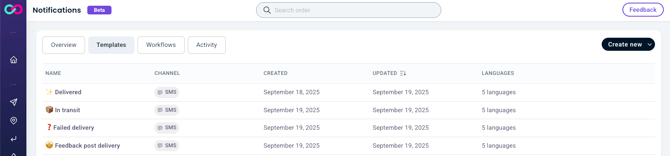
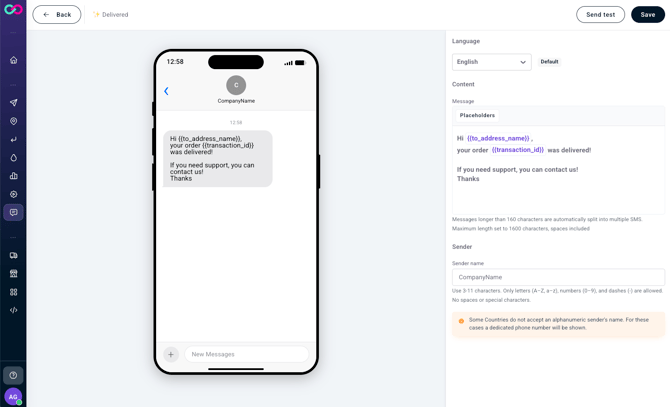
From the Templates section, you can view the templates you have available and all new templates you created
SMS templates:
-
Sender field (Sender Name): Up to 11 characters (spaces included). Special characters are not supported. Please note that the sender phone number is not currently customizable.
-
Message body: Up to 160 characters (spaces included). If you use placeholders, their structure must remain unchanged.
-
Languages: You can configure messages in 5 languages.
-
Testing: Send a test notification before going live.
WhatsApp templates:
Currently, WhatsApp notifications cannot be customized (including the Sender Name). You will have access to pre-approved templates designed to inform customers about their shipment status. Some templates include a custom link button that you can configure to point to your own support center or website, letting you personalize the customer experience without editing the template itself.
📌 NB: Currently, for both SMS and WhatsApp, messages will be sent from a default ShippyPro sender phone number, which cannot be customized.
7. Which notifications to activate (and in what order)
You don't need a preset or workflow for every single tracking status: more messages don't mean more value, and a customer who gets too many tends to get annoyed or opt out. Here's how to prioritize, based on real impact on support tickets.
If you can only activate one: Failed Attempt.
This is the status that drives the most "where is my order?" tickets when the customer isn't warned. Activate it on WhatsApp: the customer can react right away (rebook a delivery, pick up at a PUDO point) instead of finding out by contacting support.
The three that cover most use cases:
Out for Delivery— recommended channel: WhatsApp or SMS. This is the message with the highest read rate, because it calls for same-day action (being home, alerting a neighbor). Send it in the morning of the delivery day, not the evening before.Delivered— recommended channel: WhatsApp. Confirms everything went well, and it's the best moment to add a review or support-center link, if the template allows it.Failed Attempt— recommended channel: WhatsApp. See above: this is the one with the biggest impact on ticket reduction.
Worth evaluating based on your case:
In Transit— most useful for international shipments or long delivery times, to reassure the customer while they wait. On domestic shipments delivered in 24-48h, it adds little value and can feel redundant with "Out for Delivery".Label Generated— only useful if more than a day passes between label creation and actual pickup.Available at PUDO— always activate this one if you use carriers with pickup-point delivery, since the package stays available only for a limited number of days.
⚠️ Important: Avoid notifying the same customer across too many consecutive statuses on the same channel. The risk is notification fatigue, with customers opting out of SMS/WhatsApp or blocking the sender number.
8. Payments and Costs
👉 See full pricing details here: SMS and WhatsApp Notifications Pricing
9. FAQ & Errors
To which number are SMS messages sent?
SMS are sent to the recipient’s phone number provided in the order details.
Can I change the recipient’s phone number?
Yes. You can edit the phone number in the Orders table (Edit option). On the next status update, the new phone number will be used.
Why might SMS not be delivered?
Delivery issues can occur due to:
-
Invalid or missing phone number
-
Phone number not provided in the order
-
Issues with order status updates
Can I edit the phone number after creating the shipment?
Yes. You can update the phone number even after the shipment is created.
Notifications about Amazon shipments
Please note that we cannot guarantee any consequences or actions that Amazon may take as a result of sending communications to the buyer. We claim no responsibility for anything that might occur due to notifications sending. Our customers bear the exclusive responsibility for the use and management of the "Leave a Feedback" function as well as for set-up of the relevant parameters (including but not limited to the number and categories of e-mail recipients) and e-mail content. Therefore we have no responsibility in relation to your, your representatives', employees' and collaborators' and/or third parties' use of this function nor in relation to compliance with the rules of Amazon and/or any other marketplace where you operate.
Please read the Communication guidelines carefully and add no-reply@shippypro.com as a sender following Buyer-Seller Messaging Permissions
Notifications about Zalando shipments
Zalando's Platform Rules allow Partners to use Customers' personal data only to the extent necessary to fulfil the purchase contract. We therefore recommend limiting notifications on Zalando orders to transactional shipment updates, and avoiding promotional content (promo codes, recommended products, banners, review requests). We cannot guarantee any consequences or actions that Zalando may take as a result of communications sent to the buyer. Our customers bear the exclusive responsibility for the use of notifications, for the setup of the relevant parameters and for the content of the messages, including compliance with the rules of Zalando and of any other marketplace where they operate.
Can I edit WhatsApp templates?
No, WhatsApp templates are pre-approved and cannot be modified.However, some templates include a custom link button that you can configure to point to your own support center or website. This lets you personalize the customer experience without editing the template itself.
Do Presets work across all channels?
Yes. A Preset only pre-fills the trigger and condition; you still choose the channel (SMS, WhatsApp, or Email) and the template.
What's the difference between a Preset and a custom workflow?
Nothing once activated: a workflow created from a Preset is identical to one built from scratch, and you can edit it freely. The Preset just pre-fills the trigger and condition, so you start faster.