![ShippyPro Logo-1.svg]](https://help.shippypro.com/hubfs/Imported%20sitepage%20images/ShippyPro%20Logo-1.svg)
Here's a quick guide to install QZ Tray on Windows.
Let's see how to do it!
Before starting, check these 4 steps:
-
Use Chrome as browser.
-
Set ZPL format as default from Carriers > Edit for each carrier you connected.
-
Create a manual shipment for testing following this guide.
-
Install latest Java update from this link: https://www.java.com/it/download/win10.jsp
Verify that your printer supports the ZPL print format. In case it doesn't, you can still set the Carriers connected to PDF format.
1. Download QZ Tray
From Orders > Labels generated, click on the first blue button Print > Print on Zebra.
Note: if the Print on Zebra button is not clickable, it means that the label selected is a PDF.
You should check the format selected on Carriers > Edit and crea a new label.
-
Click on Download QZ Tray to start the download automatically.
Warning: if you do not immediately see Download QZ Tray or Reconnect, wait a few moments for the connection to QZ Tray to load correctly.
-
Once downloaded, click on QZ Tray file and start the installation.
-
If you haven't done it yet, QZ Tray will ask you to install latest Java update at this link, installation will stop and you'll need to restart it by clicking on file again.
-
Once completed, you can refresh Shipping Labels page, select the orders and click on Print > Print on Zebra > Print.
Remember to set up Automatically start clicking on the QZ Tray icon in the toolbar, in order to open it when you turn on your computer: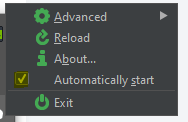
2. How to print multiple ZPL Labels
-
To print multiple ZPL labels, select the orders you'd like to print and click on Print > Print on Zebra.
-
From the window that pops up, click on Print. If you want to change printer, click on Print on Sebra Settings and select the printer name.
You can still print your ZPL lables in PDF, selecting orders and by clicking on Print > Print in PDF.
3. How to print ZPL Labels singularly
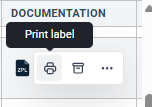
To print your ZPL labels singularly, just click on the icon under Documentation:
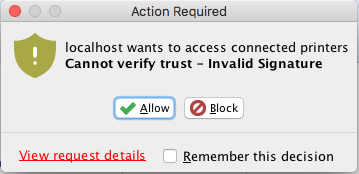
Are you facing QZ TRAY INVALID SIGNATURE or Expired certificate Error message? Don't worry! Check here to discover how to solve it.
PLEASE NOTE: QZ Tray is a singleton application and it cannot support multiple simultaneous instances on the same machine because QZ Tray uses a localhost websocket connection (wss://) from the browser to a single port on the PC. If a second instance of QZ Tray were allowed, the websocket would only ever succeed to the first available port, rendering the second instance useless.
Are there suggested printers compatible with ShippyPro?
At the moment there are no printers that we recommend specifically, since the choice is highly influenced from the type and the amount of labels you're going to make.
However, ShippyPro supports ZPL print, so a Zebra Printer may be a good choice.
Models like GK420t or GK420d are already employed from many ShippyPro users, so you can try with one of those.
4. Errors
❓ QZ Tray will not open, disconnects, or shows no printers?
Can't open QZ Tray, or can't see your printers in ShippyPro? Here are the checks to try and the results to collect if the problem continues.
For installation, follow the Windows setup instructions above or the Mac setup guide. For downloading QZ Tray and printing labels, follow How to print your Shipping Labels in ZPL.
Check Chrome and its site permission
- Update Google Chrome.
- Open ShippyPro in Chrome.
- Click View site information to the left of the URL.
- If available, enable App on device, called App dispositivo in the Italian interface.
- Refresh ShippyPro.
- Check the available printers again.
This permission allows QZ Tray to communicate with local printers. If you cannot find it, include that detail when reporting the problem.
If QZ Tray will not launch or the connection still fails
- If QZ Tray will not open, uninstall it.
- Reinstall QZ Tray using the setup guide linked above.
- Clear Chrome's cache if the connection problem persists.
- Test ShippyPro in a Chrome incognito window.
Compare printer detection in the QZ Tray demo
- Open https://demo.qz.io and test printer detection.
- Check whether printers appear in ShippyPro.
- Record whether printers appear in both places, only in the demo, or neither.
📌 Note: Printing a PDF through your browser does not confirm that QZ Tray is connected. If printers appear in the demo but not in ShippyPro, report that difference to Support.
Ask your administrator to check security software
A firewall, antivirus or other security software may interfere with the connection. Ask your IT administrator to check for blocking before changing security settings. A firewall cause was not confirmed in the reported cases.
⚠️ Important: Do not leave security protection disabled. Any security checks or configuration changes should be led by your administrator.
Collect Chrome Console errors for Support
- Open ShippyPro in Chrome.
- Press F12 to open developer tools.
- Select Console.
- Try connecting QZ Tray again.
- Capture screenshots of any connection errors, including WebSocket or CORS errors.
If the problem continues, write to our Support Team. Include the checks you tried, the demo-versus-ShippyPro printer detection results, a screenshot of the enabled Chrome permission if available, and your Console screenshots. If QZ Tray will not open, include a video showing what happens when you try to launch it.
These checks help investigate the problem, but they do not resolve every case. For other label-printing issues, see Troubleshooting Shipping Label Printing Problems.