![ShippyPro Logo-1.svg]](https://help.shippypro.com/hubfs/Imported%20sitepage%20images/ShippyPro%20Logo-1.svg)
With Shopify you can split orders, assigning the items in a single order to different shipments so you can ship them at different times. 📦
When part of one of these orders is shipped, Shopify shows the status Partially fulfilled. The status changes to fulfilled once the rest of the order has been shipped too.
On ShippyPro you can split orders in two ways: manually, one order at a time, or automatically, based on the Shopify location each product ships from.
Split an order manually
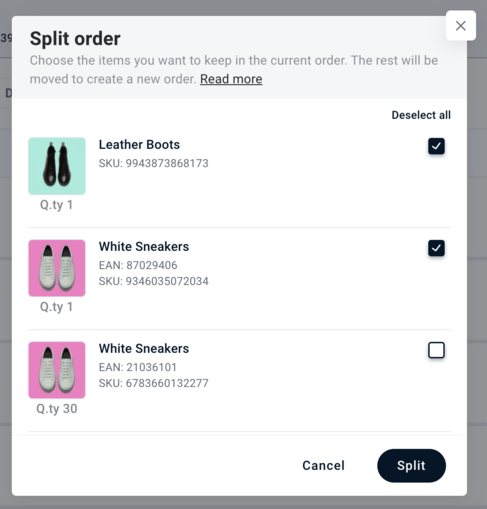
You can manage your split orders from the To Ship section. Select the order and click More actions > Split order.
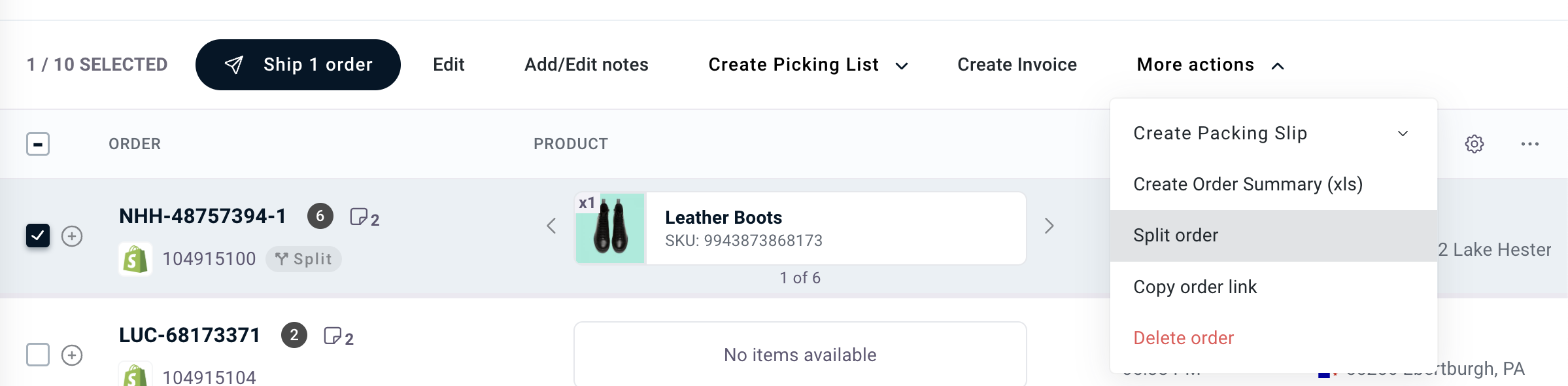
Split orders are easy to spot: they carry the “Split” badge and the format Order ID-1.
Can I Split orders automatically by Shopify location?
If you ship from more than one warehouse or store, you may need to split orders because the products are stocked in different places. Without automation, this means splitting each order by hand and choosing the right sender address for every shipment, which is slow and error-prone, especially at high volumes.
If your warehouses or stores are set up as locations on Shopify, ShippyPro can do this for you:
- orders are imported already split, following the fulfillment logic you set in Shopify;
- each shipment carries its Shopify location ID as a tag;
- you can build Automation rules on that tag to assign the right sender address and carrier automatically.
The result is a fully automated flow, from import to label, with no manual splitting and fewer address and carrier mistakes.
How to enable it
This option is off by default and must be enabled on each Shopify connection. To turn it on, go to Marketplaces > Shopify > Edit and enable “Split orders by Shopify location (new orders only)”.

What your customers see at checkout
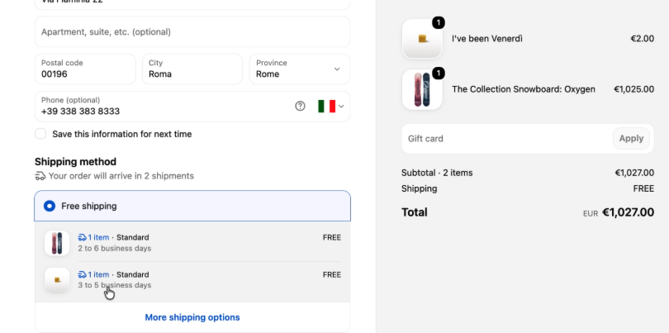
When the products in the cart ship from different locations, Shopify tells the customer at checkout. In the Shipping method section, the customer sees the message “Your order will arrive in X shipments”, with each shipment listed separately: the products it contains, the shipping rate and its own delivery estimate.
The customer places a single order and pays once. The split happens behind the scenes, when the order reaches ShippyPro.
💡 What the customer sees at checkout depends on your shipping and location settings in Shopify, not on ShippyPro.
How it works
When a new order is imported, ShippyPro reads from Shopify which location each product ships from. If the products ship from two or more locations, the order is split in To Ship into one order per location, the same way as a manual split. For example: 1064 (first location), 1064-1, 1064-2, and so on.

On ShippyPro:

Location tag 🏷️
Each order gets a tag with its location, in the format location_id_<Shopify location ID>, for example location_id_70123456789. Orders from a single location are not split, but they still get the tag.

You can use this tag in an Automation workflow, with the Tag condition, to handle each location differently. For example, you can set a different sender address or carrier for each one.
📌 Where to find the location ID: on Shopify, go to Settings > Locations and open the location. The ID is the number at the end of the page URL (e.g. .../settings/locations/70123456789).

Products without a location
Some products have no location ShippyPro can read, such as products at a location managed by a third-party fulfillment app. These products stay on the first location’s order, along with products that don’t require shipping, such as gift cards.
Fulfillment on Shopify
When you ship, each split order is fulfilled on Shopify only for the products of its own location, with its own tracking code. Sometimes a location can no longer fulfill all of its products. For example, the products may have been moved to another location on Shopify, or the split orders may have been merged back in ShippyPro. In that case, the products are fulfilled from any available location.
Cancelled, deleted or fulfilled orders
If the order is cancelled, deleted or fulfilled on Shopify, all of its split orders are removed from To Ship as well.
Automate sender address and carrier for each location ⚙️
With the location tag, you can create an Automation workflow for each warehouse or store, so every shipment leaves with the right sender address and carrier without any manual step.
- Go to Automation and create a new workflow.
- Add the Tag condition and enter the tag of the location, e.g.
location_id_70123456789. - Add the actions you need, for example:
- set the sender address of that warehouse or store;
- set the carrier and service to use for that location.
- Save the workflow and repeat for each location.
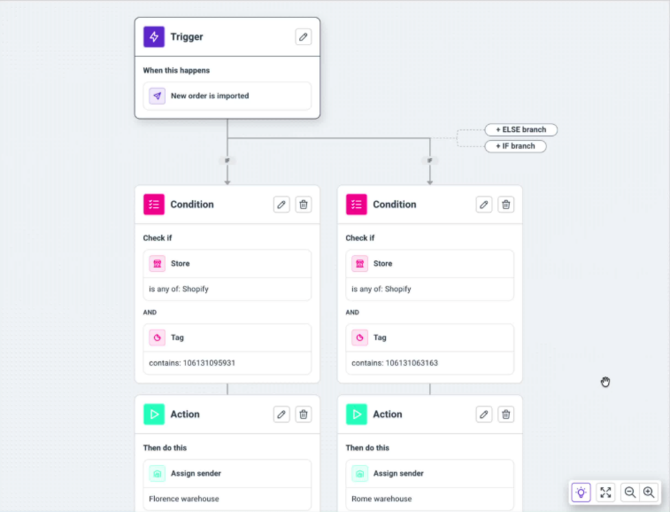
From now on, when a split order arrives in To Ship, the workflow for its location applies automatically, and the label is generated with the right address and carrier.
Example: you ship from a warehouse in Milan and a store in Rome. An order contains one product stocked in Milan and one in Rome. ShippyPro imports it as 1064 (Milan) and 1064-1 (Rome). The Milan workflow assigns the Milan sender address and your usual courier; the Rome workflow assigns the store’s address and a different carrier.
Limitations
- New orders only: orders imported before the option was enabled are not split.
- One-time split at import: if you change the location of the products on Shopify after import, the orders are not split again.
- No updates after splitting: split orders no longer receive updates from Shopify (address, items, notes…), the same as manually split orders. Orders that were not split keep receiving updates as usual.
FAQ
❓ Why doesn’t ShippyPro update after I removed an item from a Shopify order I had already split?
Once an order is split, either manually or automatically by location, ShippyPro stops updating it. As a result, any changes made later in Shopify are no longer reflected in ShippyPro, including adding or removing items and editing order details.
❓ Can I use the location tag even if my orders aren’t split?
Yes. Orders from a single location get the tag too, so you can use the same Automation workflows for all your orders.